





 History Search
 Recommended For You
 Languge & Currency


Trading is one of the easiest ways to deal with duplicate Travel Town Cards and fill the gaps in your Seasonal Album. Travel Town Cards — sometimes casually called stickers by players — can be sent to friends when you have an eligible duplicate, making trading especially useful when random Card Packs keep giving you Cards you already own.
The process is pretty simple once you know where everything is: add the other player to your Travel Town friends list, open your Card Album, choose the duplicate Card you want to send, and select that friend as the recipient.
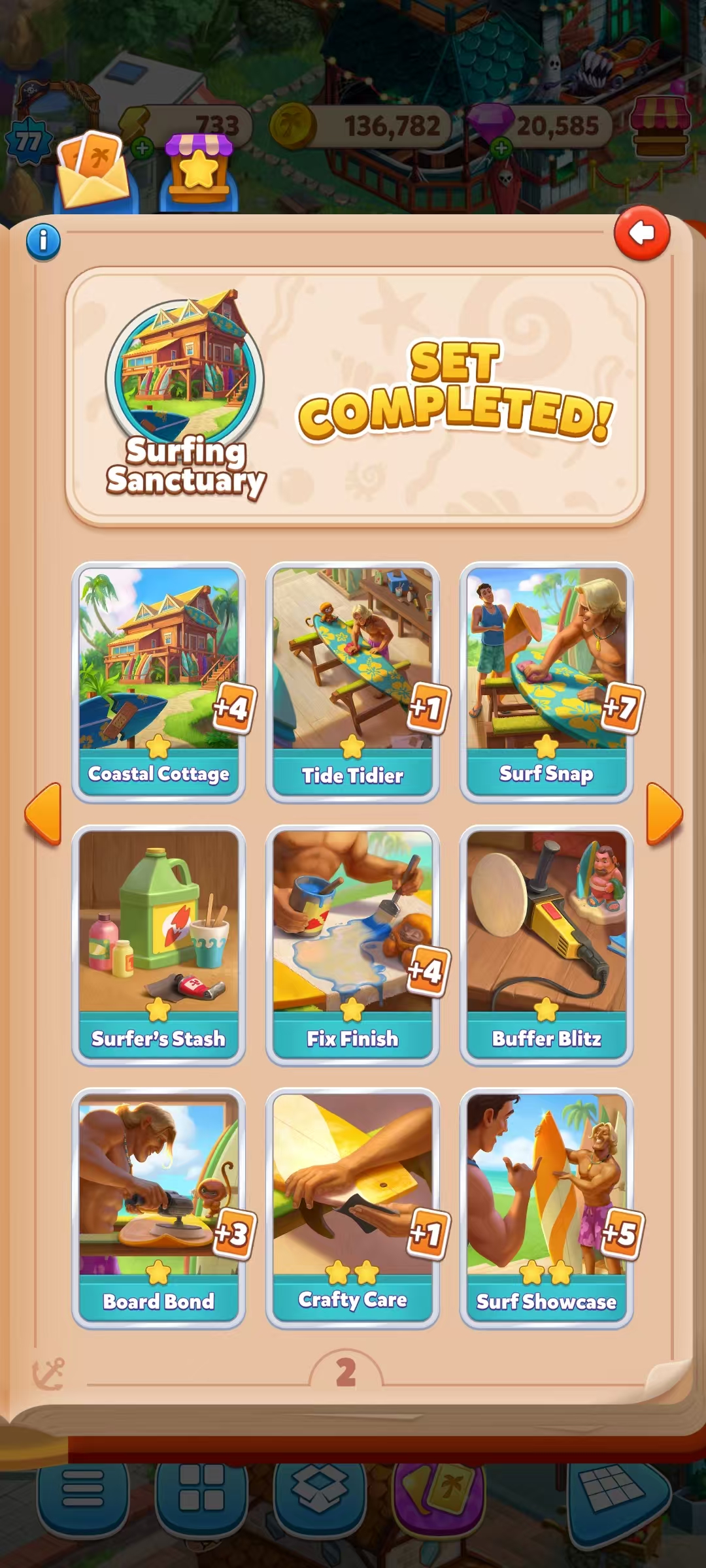
Before You Trade: What Do You Need?
Before trying to send a Card, check a few basics first. Most failed trades happen because the Card is not actually sendable or the other player has not appeared in the friends list yet.
- You need an eligible duplicate Card. A Card you own only once cannot normally be sent because you need to keep your original copy in the album.
- The other player needs to be in your Travel Town friends list.
- You need at least one daily Card send remaining.
- The Card itself needs to be tradable. Some special Card types can follow different rules.
Duplicate Cards are usually easy to recognize because the album shows that you own more than one copy. If you are unsure, tap the Card and check whether the send option is available before arranging a trade.
How to Add a Friend With a Travel Town Invite Link
You do not need to make the trading process complicated. Travel Town lets players add each other through the in-game friends system using an Invite Link.
Open the Friends section and use the Add Friend option to share your Invite Link. Once the other player opens the link successfully, they should be added to your Travel Town friends list.
Travel Town's official friend guide also explains that a player who opens your Invite Link can automatically join your in-game friends list.
How to Trade Travel Town Cards Step by Step
Once the other player appears in your friends list and you know which Card you want to send, the actual process only takes a few taps.
Step 1: Open Your Card Album
Open the Seasonal Card Album and go to the set containing the Card you want to trade.
It is a good idea to confirm both the set and the exact Card before sending anything. Cards with similar artwork or names can be easy to confuse when you are moving quickly.
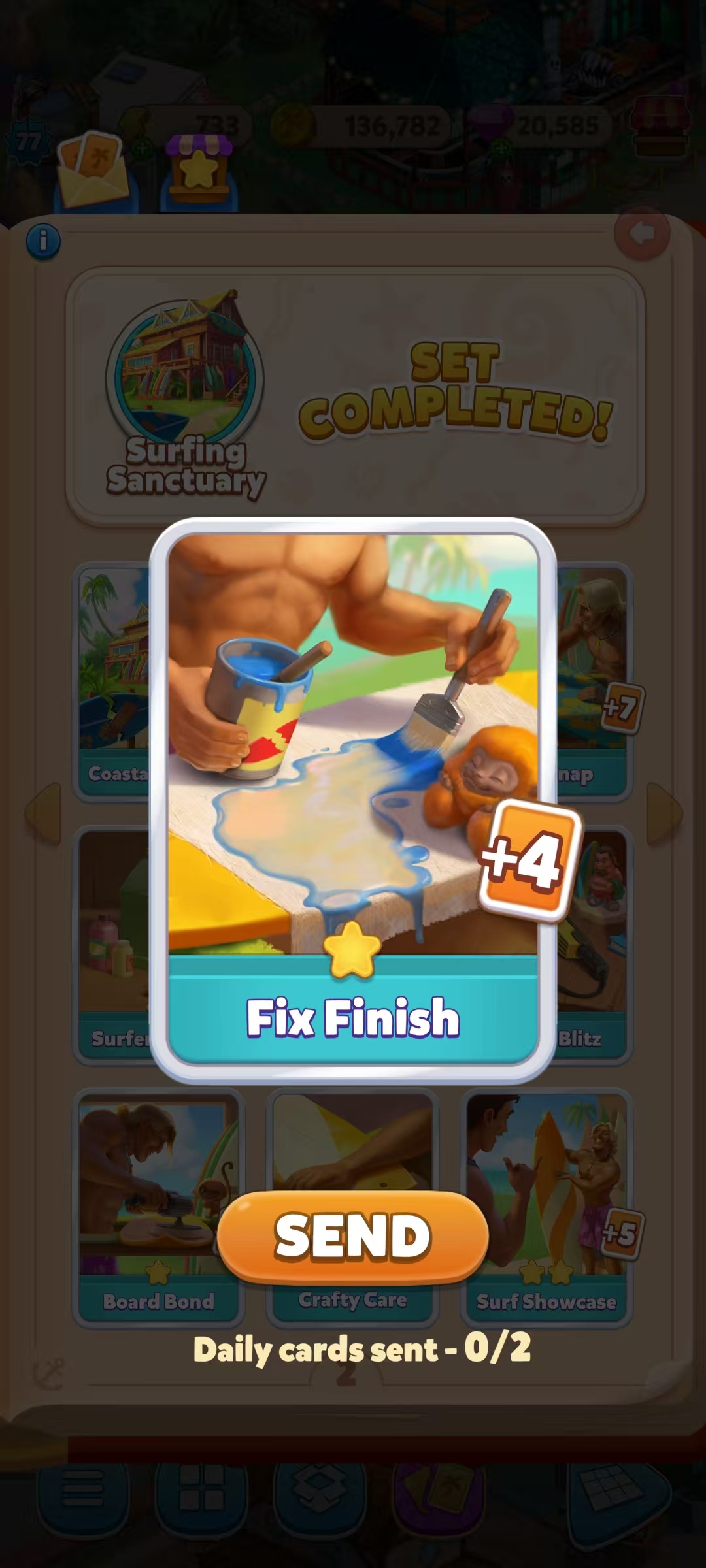
Step 2: Tap the Duplicate Card You Want to Send
Tap the Card to open its details. If you own an eligible duplicate and still have a daily send available, you should see the option to send the Card to a friend.
Travel Town's duplicate Cards guide confirms that duplicate Cards can be selected and sent to friends to help complete Card Sets.
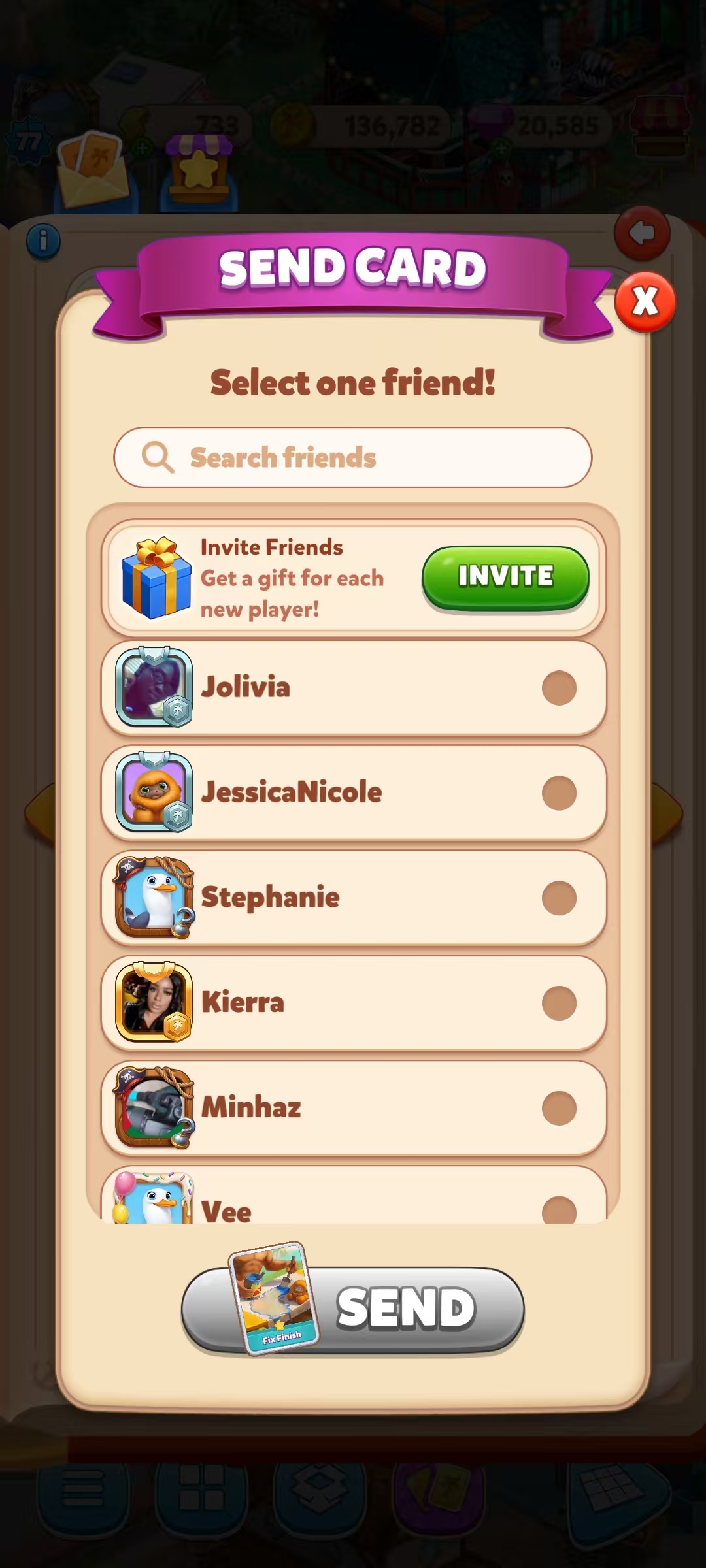
Step 3: Choose the Correct Friend
Select the friend who should receive the Card. Check the username carefully before confirming.
This matters because Travel Town trading is based on sending Cards directly to another player. Once you confirm the send, you do not want to discover that you selected someone else with a similar name.
Step 4: Confirm and Send the Card
After confirming the recipient, send the Card. Your available daily sends should update afterward.
If you are trading Card-for-Card with a friend, they can then repeat the same process from their own album and send the Card you need back to you.
How Many Travel Town Cards Can You Send Per Day?
You can currently send up to 2 Cards per day.
That limit applies to Cards you send, so it is worth planning your trades instead of using both sends immediately on low-priority Cards.
For example, if you need one Card to finish a set and another Card that would only make minor progress, use your limited sends on the trade that gives you the most useful result first.
Why Can't I Send a Travel Town Card?
If you tap a Card and cannot send it, work through these common causes before assuming something is broken.
| Problem | What to Check |
|---|---|
| No send option appears | Make sure you actually have a duplicate and that the Card is eligible to be sent. |
| The friend is missing | Confirm they opened your Invite Link and appear in your Travel Town friends list. |
| You already sent Cards today | Check whether you have reached the current 2-Card daily send limit. |
| A specific Card cannot be selected | Some special Cards can have different trading restrictions. |
| The friends list has not updated | Close and reopen the game, then check the list again. |
You Don't Actually Have a Duplicate
Having a Card in your album is not enough. You normally need an extra copy before it becomes available to send.
You Have Used Both Daily Sends
If you have already sent two Cards that day, you will need to wait for the daily allowance to refresh before sending another.
Your Friend Has Not Appeared Yet
If a player has just opened your Invite Link but you cannot see them, try restarting Travel Town and checking the friends list again.
The Card Has Special Trading Rules
Not every special Card type follows exactly the same rules as an ordinary duplicate Card. If the game does not show a send option for a specific Card, do not assume the app is malfunctioning. Check the current Card type and in-game rules first.
How Do You Receive a Card From a Friend?
Receiving is easier than sending. When another player sends you a Card, Travel Town should show a notification on your Card inbox.
Open the Card inbox and claim the received Card. If it fills the last empty slot in a set, you may then be able to collect that set's completion reward.
If someone tells you they already sent the Card but nothing appears immediately, reopen the relevant screen or restart the game before assuming the Card has disappeared.
A Few Simple Tips for Smoother Card Trading
Trading does not need to be complicated, but two habits can save you a lot of frustration.
Confirm the Player's Username Before Sending
Ask the other player for their exact in-game username and compare it with the name shown in your friend list before confirming the send.
Never Share Your Account Password
Normal Card trading does not require another player to log into your account. Do not give someone your password just because they claim it is necessary to send or receive a Card.
Your Invite Link and in-game username are enough for the normal friend-and-send process.
Frequently Asked Questions
How do I trade Cards in Travel Town?
Add the other player to your Travel Town friends list, open your Card Album, select an eligible duplicate Card, choose the send option, select the correct friend, and confirm.
How do I add someone for a Travel Town Card trade?
You can use the Travel Town Add Friend feature to share an Invite Link. Once the other player opens it successfully, they should appear in your in-game friends list.
How many Cards can I send per day in Travel Town?
The current limit is 2 Cards per day. Travel Town may change this limit in future updates, so check your in-game send counter for the latest limit.
Why can't I send a Card even though I own it?
You usually need a duplicate copy. You may also have reached your daily send limit, the Card may have special trading restrictions, or the friend you want to send it to may not be available in your friend list yet.
Do I need to share my Travel Town password to trade Cards?
No. You should never need to give another player your account password for a normal Card trade.
Final Thoughts
Travel Town Card trading is much easier once you understand the basic flow. Add the other player to your friends list, confirm that you have a sendable duplicate, choose the right Card and username, and keep an eye on your two daily sends.
Trading is especially useful when your album is nearly complete and random Card Packs keep giving you duplicates instead of the specific Card you need.
If you are still missing one or two specific Cards and cannot get them through your available trades, you can also check the Travel Town Cards currently available on BuyMMOG.


